Five-minute path
- Download or clone the demonstration vault.
- Open Glyphary.
- Choose File -> Open Vault... and select the demo folder.
- Click a file in the left drawer.
- Type in the editor, then press Cmd+S.
- Press Cmd+P and run Insert callout.
 Glyphary Documentation
Start here
This manual is written for hands-on use: it helps new users get productive and gives evaluators a concrete tour of Glyphary's real workflows. Work through the sections in order once, then use the sidebar as a reference.
.glyphary/config.json.Download the latest build from GitHub Releases. Open the newest release and choose the asset for your operating system.
.dmg from the Glyphary releases page.Launch Glyphary, then choose File -> Open Vault... and select your notes folder. Glyphary works directly on local folders; it does not require importing or uploading your vault.
Use File -> Open Vault... from the native menu and choose the vault root folder.
Before a vault is open, Glyphary keeps the window focused on the open-vault invitation and hides document, drawer, appearance, and status controls.
Every opened folder is added to the Vaults switcher in the left rail. Open the switcher to move between vaults without using the system picker again. Glyphary saves the active page before switching and restores the selected vault's own workspace.
Right-click a vault in the switcher to choose or remove a cover image, open it, or forget it. Forgetting removes the folder from the switcher; it does not delete the vault.
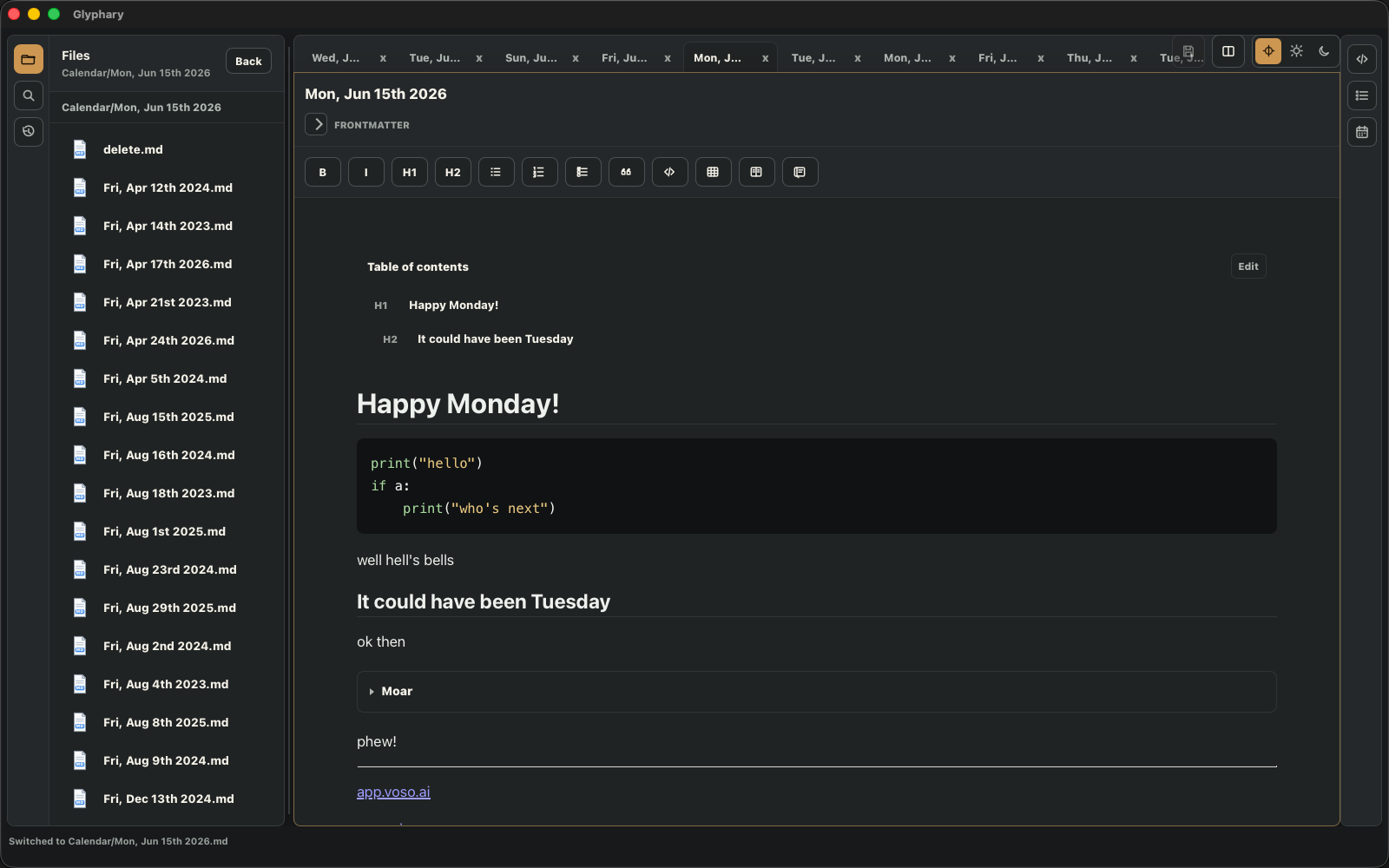
The app window is split into stable regions so scrolling one area does not move the rest.
On macOS, the system menu bar provides File, Edit, Insert, Format, View, Window, and Help commands. It includes Open Recent, active-file actions, table formatting, appearance and drawer toggles, and tab navigation. Settings opens in its own window, and file, table, Base, and vault-library context menus use native menus when available.
Opening a supported .md, .canvas, or .base file
from Finder opens it when it belongs to the current vault. Files outside that vault are
ignored rather than silently changing the workspace root.
The left drawer opens expanded by default and has Files, Search, Recent, Starred, and Tasks views.
When Files is active, the titlebar shows Back, New Note, and New Folder. Interface settings can hide either creation button without removing the same command from the folder context menu.
The document-opening setting also applies to Search, Recent, Starred, and Tasks.
Settings can show files inside the folder tree, add a background behind that tree, and display a text excerpt under each file. Image previews use the first resolvable image in the note and can be disabled independently.
Search can match filenames or Markdown file contents. Content search runs inside
Glyphary using the same grep crates that power ripgrep-style matching, so no external
rg binary is required. Search results are grouped by file, show a match
count, and are sorted from the most recently modified page down to older notes.
Recent shows the newest files you opened in this vault. Opening a recent item activates it in the current editor pane and updates the left-drawer selection when the file is available in the current vault.
Run Star File from the Format menu or command palette to keep any note, canvas, or Base in the Starred view. Drag starred rows to reorder them. Renaming or moving a starred item updates its saved path; deleting it removes the stale star.
Tasks scans visible Markdown files for task-list items such as - [ ] and
- [x]. Dotfiles and dot folders are excluded. Use the filters to show
incomplete, complete, or all tasks; use the search field to narrow the displayed list;
and sort by task text or file date.
Right-click entries in the Files view to use the native file actions available for that item.
.canvas file inside a folder and open it in the active pane.old/old.md to new/new.md.Moving or renaming files updates open tabs, recent files, and the in-memory wikilink index immediately so the workspace keeps pointing at the new path.
When a file is opened from Search, Recent, Starred, Tasks, a calendar day, or a deep link, Glyphary switches to Files, expands the relevant directory view, and keeps the selected file visible in the tree.
Right-click a note, canvas, or Base and choose Copy Deep Link to place
a Glyphary URL on the clipboard. The URL identifies the vault by name and the file by
its vault-relative path, so it can be pasted into another app or used with the system
open command.
glyphary://open?vault=Demo&file=Home.md
Opening a glyphary://open URL switches to the matching remembered vault
and opens the requested file. The vault must already be in Glyphary's Vaults switcher;
unknown vault names are reported instead of changing the current workspace.
The editor is WYSIWYG, but it serializes back to Markdown.
Use the View/Edit icon selector beside the appearance control to choose how much editing chrome is visible. View mode hides the frontmatter area and formatting toolbar while the document remains editable, so a banner image or first heading can sit directly above the note body.
Syntax highlighting covers 40 languages: Plain text, Python, Shell, JavaScript,
TypeScript, JSON, Rust, SQL, HTML, CSS, Markdown, C, C++, C#, CMake, Dart, Diff,
Dockerfile, Elixir, Go, GraphQL, Haskell, INI, Java, Kotlin, LaTeX, Lua, Makefile,
Nginx, Objective-C, Perl, PHP, PowerShell, Protobuf, R, Ruby, Scala, Swift, TOML, and
YAML. Common fence aliases such as bash, js, ts,
rs, md, golang, yml,
c++, cs, objc, and ps1 are
recognized, and the language picker on each block lists every supported name.
A mermaid fence renders as a diagram. If the diagram source has a syntax
error, the parse message appears inside the block in place of the diagram so you can
fix the source without leaving the note.
When the cursor is inside a code block, the language picker appears on that block. Pressing Tab inside a code block inserts indentation instead of moving focus away from the editor, and the editor uses four-space tab sizing.
Inline formatting expands as you type: **bold**, *italic*,
~~strikethrough~~, and ==highlight== all convert to their
rendered form the moment you close the pair, anywhere in a sentence. Superscript
(^) and subscript (~) render when a note is loaded rather than
while typing, because their single-character delimiters appear too often in ordinary
prose.
Some blocks are edited as a unit and have no natural caret position between them: tables, callouts, columns, collapsible sections, rich links, galleries, drawings, and HTML blocks. When the caret is inside one of these blocks, small + controls appear in the gutter above and below it. Click one to insert an empty paragraph at that boundary, which is how you add text between two adjacent callouts or after a table that ends the note.
The arrow keys respect the same boundaries. Pressing Down from the last row of a table or the last line of a code block that is followed by another block places a thin insertion cursor between the two blocks; press Enter there to create a paragraph. At the very end of a note, Down out of a code block creates the paragraph directly.
Press Cmd+F to search the active Markdown page. Glyphary highlights all matches, reports the current match count, and supports Enter/Shift+Enter or the Up/Down buttons for navigation. Press Esc to close the search bar.
Press Cmd+P or use the command button beside Save. Type to filter, use arrow keys to move, Enter to run, and Esc to close. Inside a note, typing / opens the flat slash menu with the same Insert and AI commands.
```toc block.
Type / at the start of a line or after a space to open a menu anchored to the
caret. It lists the Insert and AI commands as one flat, filterable list: keep typing to
filter, use the arrow keys to move, press Enter to run, or press Esc to dismiss it.
/ stays in the note when you dismiss the menu, so writing a literal slash never fights the editor.Glyphary shows a short hint the first time you use a feature that deserves an explanation, such as the slash menu or the Source drawer. Each hint appears once; press Got it to continue with what you were doing. The Hints section under Settings -> Main can disable hints entirely or reset them so every hint shows again.
Focus Mode leaves only the note on screen. Enter or exit it from the command palette (Enter Focus Mode / Exit Focus Mode) or from View -> Focus Mode in the native menu, which shows a checkmark while it is active.
While focused, the Files drawer, inspector, tab strip, formatting toolbar, frontmatter area, and every title-bar control except Save and the command palette button are hidden. Split panes stay visible because both halves are part of the editing area. Nothing is closed or reset: drawer widths, open tabs, and scroll positions return exactly as they were when you exit. Keyboard shortcuts, Markdown syntax, and the command palette keep working, so formatting and switching notes remain one keystroke away.
Glyphary can run AI commands against an OpenAI-compatible backend. AI commands are hidden until they are enabled in Settings, so the command palette stays focused when no AI provider is configured.
The default backend shape follows the OpenAI-compatible API convention: a base URL such
as https://api.openai.com/v1, an API key, and a selected chat model.
Open the command palette with Cmd+P, choose AI ..., then select the command you want to run. Most commands work on selected text; commands such as Generate title and Continue writing can use the current note and cursor context.
mermaid block, not an image.While the request is running, Glyphary shows an AI progress overlay so the editor does not appear frozen. AI output is then shown in a review dialog before Glyphary changes the note. Use Replace Selection when the result should overwrite the selected text, or Insert Below when you want to keep the original and add the result after it. Press Esc to dismiss the review dialog without applying the response.
AI Builder is part of the AI command group. It creates or revises page sections in the current editor, then shows a review dialog before anything is inserted or replaced.
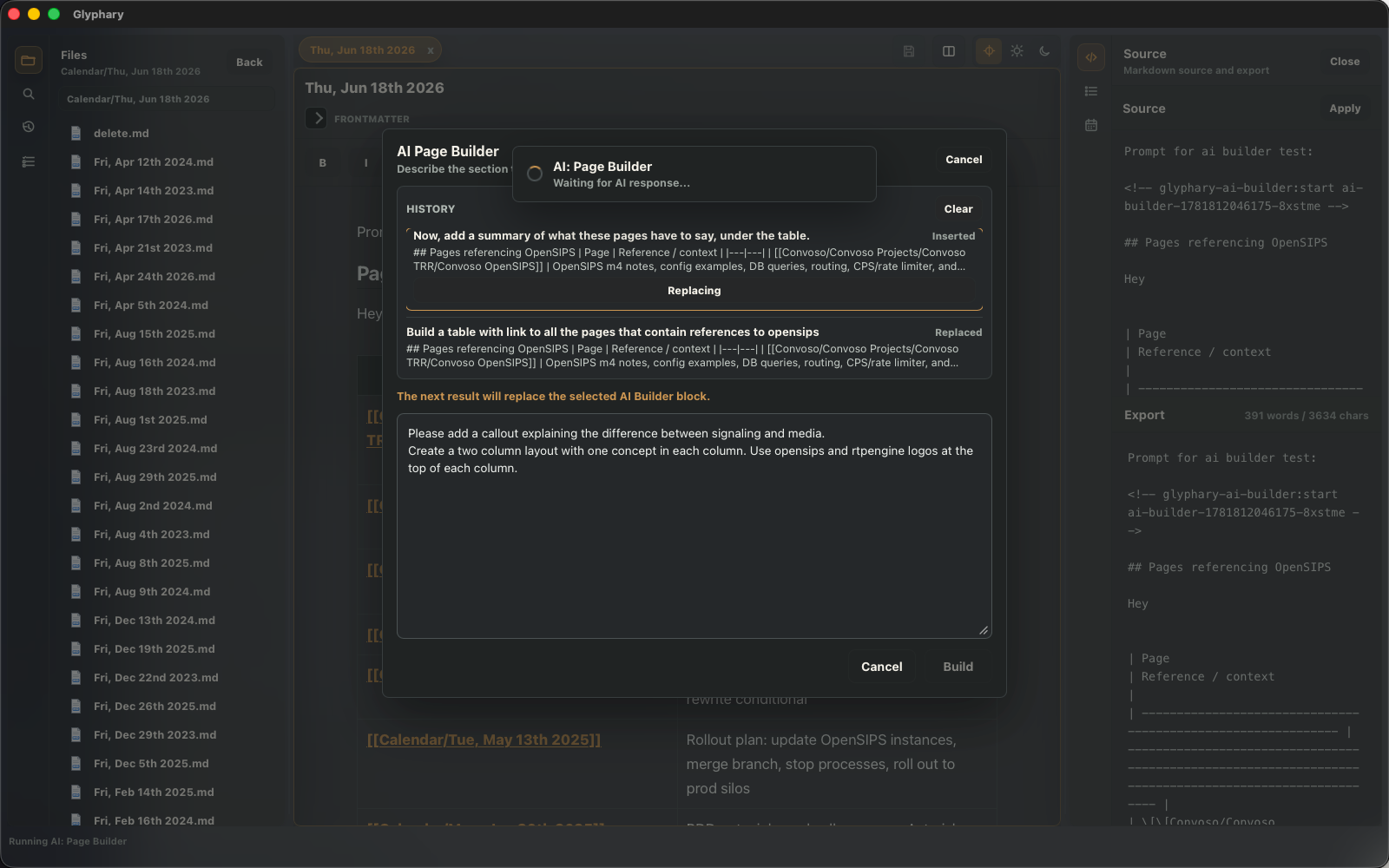
Ask for page-local work such as drafting a section, creating columns, adding callouts, continuing from the cursor, or refining a previously inserted AI Builder block. When you run a follow-up prompt, Glyphary targets the latest still-present AI Builder block so the result can replace it instead of appending another copy.
AI Builder keeps a per-file conversation history. Previously applied Builder results are tracked with invisible Markdown comments so follow-up requests can replace the generated region cleanly while leaving normal rendered editing uncluttered.
If the prompt asks about the vault, all pages, matching notes, related files, tasks, or
todos, Glyphary first performs local bounded retrieval. It searches visible Markdown
files, reads a small number of matching notes, includes compact excerpts and snippets,
and asks the AI to cite source notes with [[Note Name]] links.
Summarize all pages pertaining to opensips.
Create a table of open tasks related to networking.
Build a project brief from notes about database migrations.
AI Builder also understands reference-style prompts. For example, this request searches
visible Markdown notes for opensips, then builds a table from the matching
pages:
Create a table with links to all the pages that reference opensipsAfter applying the result, you can reopen AI Builder and refine the same generated block:
Create a summary of what these pages have to say under the tableIf the Builder proposes external images, logos, or other visual assets, Glyphary opens an asset review step before applying the page change. Approved assets are imported into the vault image directory and the generated Markdown is rewritten to use normal local vault image references.
Frontmatter is hidden from the WYSIWYG body, preserved on save, and available from the disclosure row above the editor. Each property has its own single-line editor; add and remove properties without editing the raw frontmatter block. Edit the left field to rename a property; scalar values are normalized to one line. YAML and TOML delimiters are preserved.
---
tags:
  - databases
  - devops
banner: '![[Pasted image 20230521183520.png]]'
---
Tags are edited as individual pills. Any other property loaded with multiple values is
presented the same way, including inline arrays such as [draft, project] and
YAML block lists. Press Enter to add a value and remove a pill without rewriting the rest.
A banner value can display a vault image above the metadata area. Bare image
names resolve through _assets_/images; paths such as
Attachments/banner.png resolve relative to the vault root.
Glyphary can keep multiple documents open and split the editor into two independent tab groups. The last tab can be closed, leaving a quiet center workspace with no document open.
Configure New Tab in Settings to choose the vault file opened by Cmd+T. When no file is configured, Cmd+T leaves the workspace unchanged and the status bar invites you to choose a new-tab note.
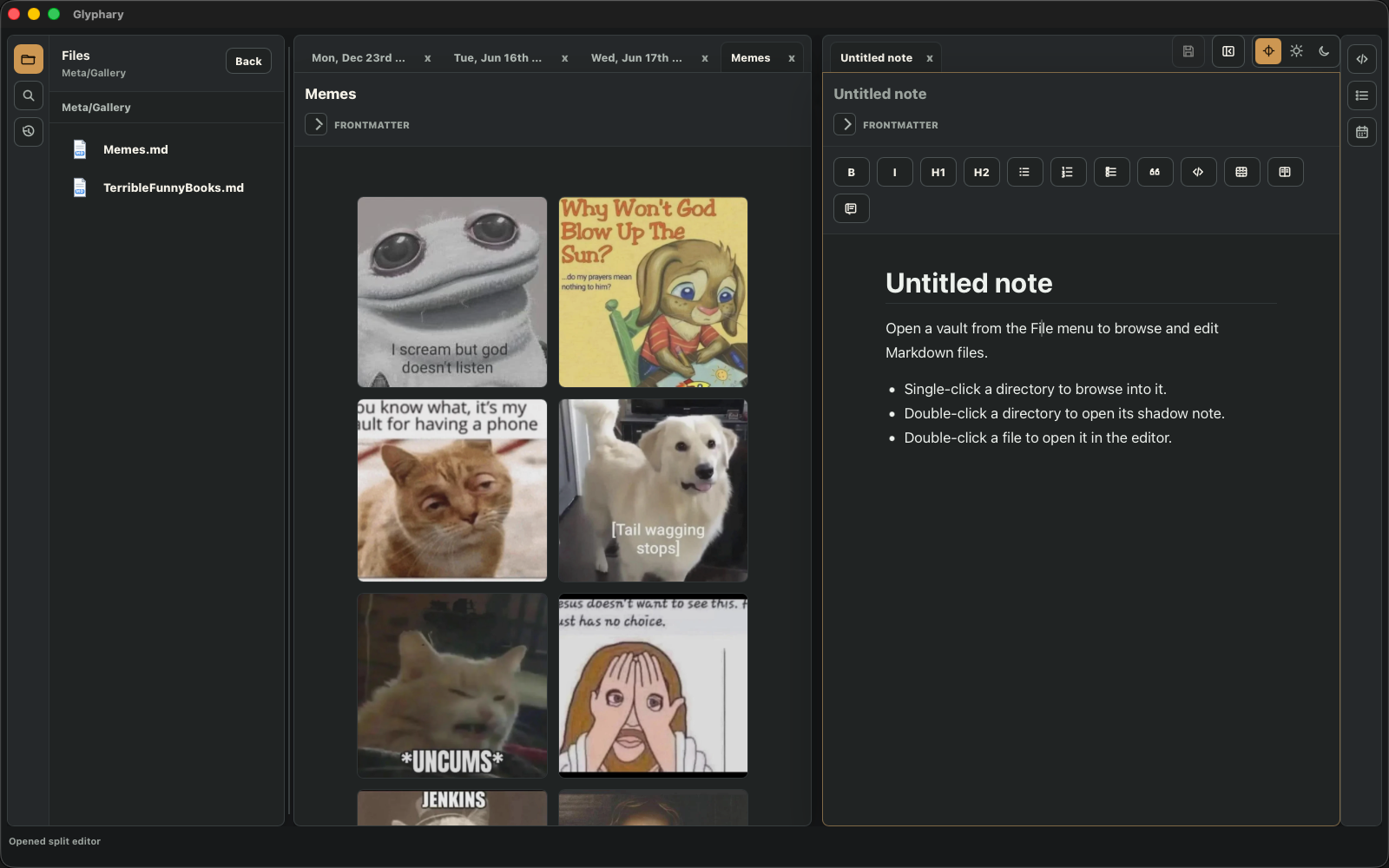
Drag a Markdown, canvas, or Base file from the Files tree into the editor area. When the editor is already split, the file opens as a new tab in the pane under the pointer. When it is not split, moving over the left or right half shows a split preview; drop to create the split, or leave the editor area to cancel.
Right-click a tab to Close Tab, Close Other Tabs, or Star File/Unstar File. Closing other tabs keeps the selected tab and refuses to close while another tab has unsaved changes, telling you to save it first.
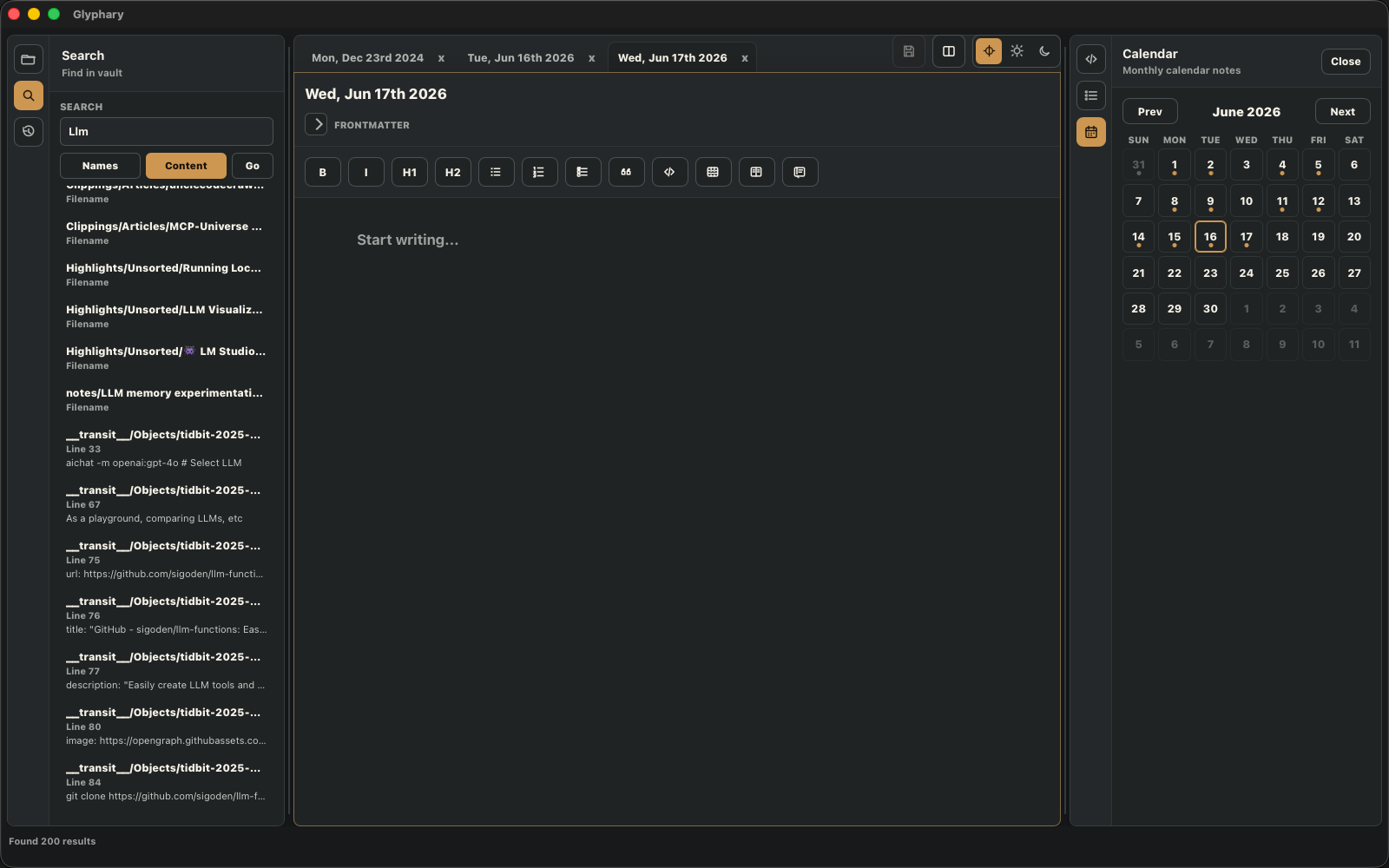
The right drawer is closed by default and includes Source/Export, Table of Contents, and Calendar.
Search by filename or content. Content search is built into Glyphary and uses bounded in-process grep-style matching across visible vault files. The results list shows one row per file, reports how many matches were found in that file, and keeps newer pages above older ones.
A query with several words finds notes that contain every word, in any order and on any
lines, so netbird github lists only the notes mentioning both. Each word is
still matched as a regular expression, and results are sorted newest-first before the
result limit applies, so a recently edited note is never pushed out by older matches.
[[Dad Jokes]]
[[Calendar/Mon, Dec 22nd 2025]]
[[Dad Jokes|A better label]]
Typing [[ opens page search. Exact vault-relative matches win first;
duplicate basename matches show a chooser. The chooser supports arrow-key navigation
and Enter selection. Aliases preserve their target while rendering the text after the
pipe. Inside a Markdown table, that alias pipe remains part of the wikilink instead of
splitting the cell.
Glyphary Markdown support is extension-driven: files stay plain Markdown on disk, while the editor renders the syntax that Glyphary knows how to round-trip. This is the Glyphary reference, not a generic TipTap or ProseMirror feature matrix.
#, ##, ###.**bold**, *italic*, `inline code`, ~~strikethrough~~, ==highlight==, ^superscript^, ~subscript~, <kbd>Cmd</kbd>, links, and images.mermaid fences (a syntax error shows its parse message inside the block).Use the table icon to insert a table. When inside a table, palette commands appear for rows, columns, and table deletion. You can also right-click a table to use the same row and column commands, plus Align column... for left, center, or right text alignment.
| Item | Amount |
| :--- | -----: |
| Rent | $1,200 |
Markdown alignment rows are supported: a leading colon aligns left, a trailing colon
aligns right, and both sides center the column. Glyphary does not currently support
attribute-list syntax such as {align=right} for table cells or columns.
Wikilink aliases work inside table cells without escaping the pipe:
| [[Databases|Database notes]] | parses and saves as one cell.
- [ ] Collect screenshots
- [x] Open the vault[[Page Name]]
[[Folder/Page Name]]
[[Page Name|Display text]]
![[Pasted image 20230521183520.png]]
![[_assets_/drawings/System sketch 20230102173741.excalidraw]]

Wikilink aliases render as the display text while preserving the target path in
Markdown. Vault images resolve relative paths and also check _assets_/images.
Excalidraw drawings are stored under _assets_/drawings. YouTube URLs used
as Markdown images render as thumbnails, and clicking the thumbnail opens the original
video URL.
---
tags:
  - project
banner: '![[Pasted image 20230521183520.png]]'
---
Frontmatter stays editable in Edit mode as single-line property rows. Keys and scalar
values can be changed in place, properties can be added or removed, and tags or any
detected multi-value property use editable pills. YAML --- and TOML
+++ delimiters are preserved. A banner displays a page banner
above the frontmatter area when the referenced image is found.
```toc
```
When not editing the block, Glyphary renders it as a table of contents.
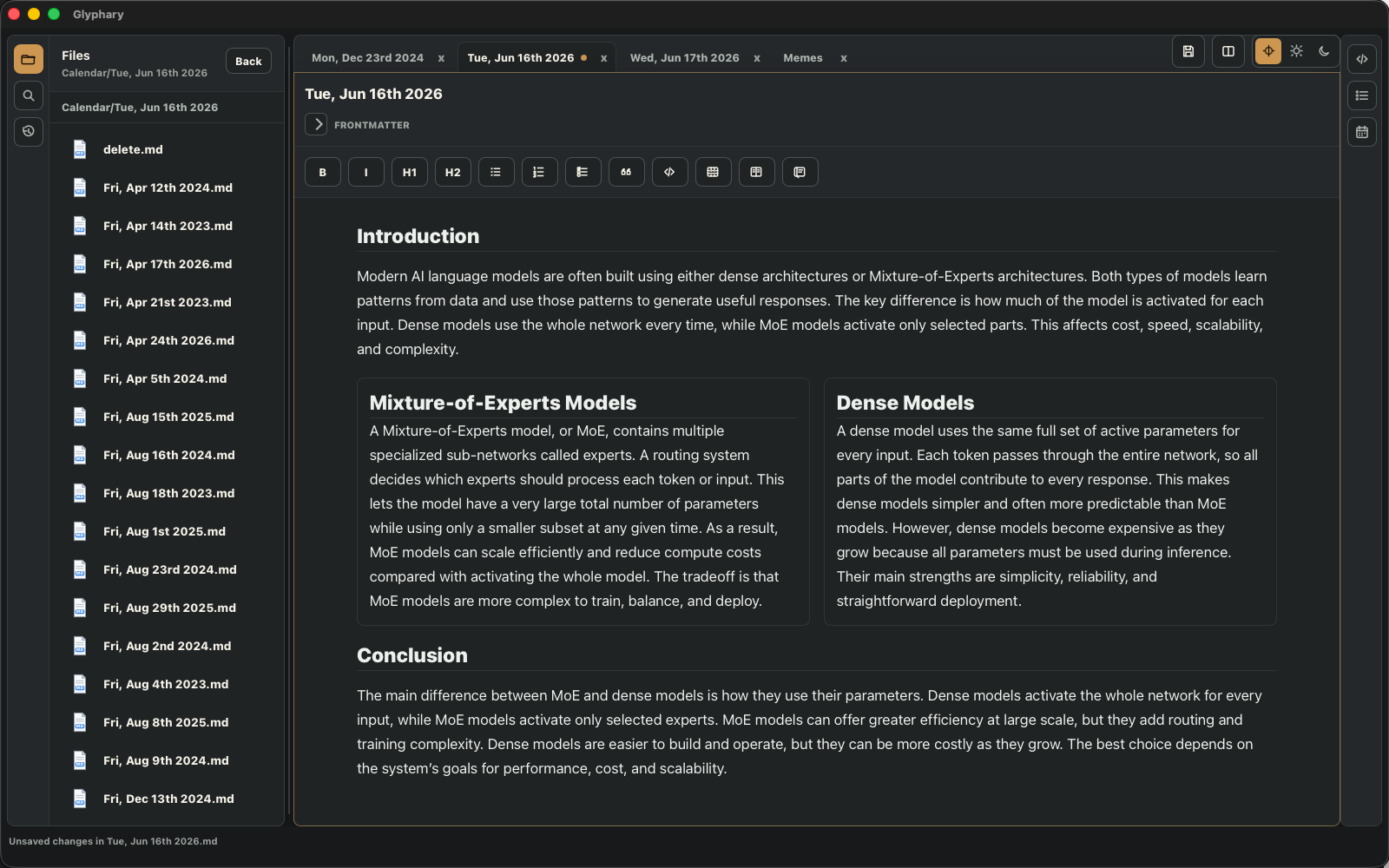
::: columns
::: column
Left content
:::

::: column
Right content
:::
:::
::: gallery
![[Screenshot 1.png]]

![[Screenshot 2.png]]
:::
Use Gallery layout with selected images to create a responsive image grid.
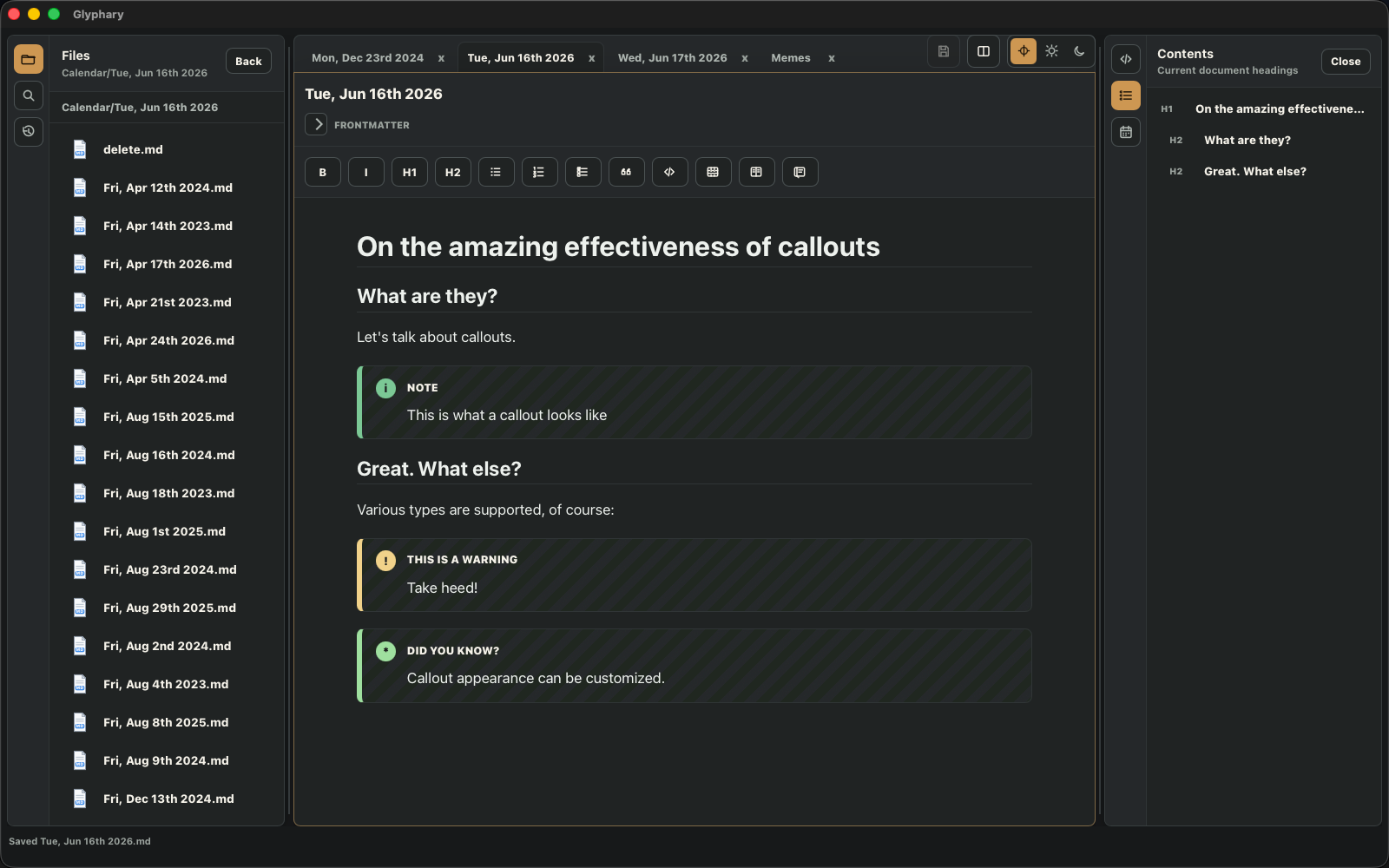
::: callout warning "Database Migration"
Back up the database first.
:::
Supported visual types include note, info, tip, and warning.
::: collapse "More details"
Hidden content starts collapsed.
:::

::: collapse "Already open" open
This starts expanded.
:::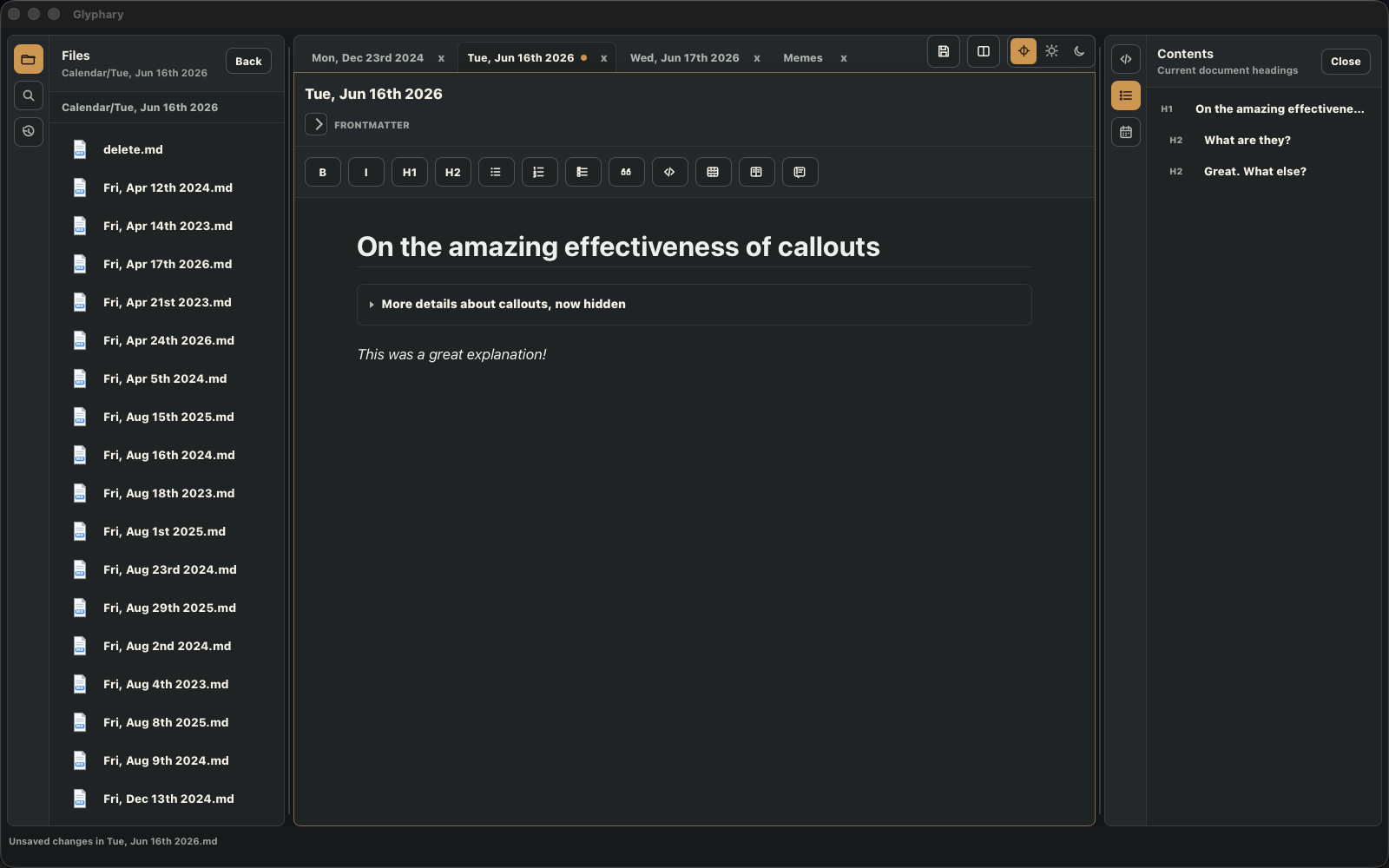
open to start expanded.::: rich-link
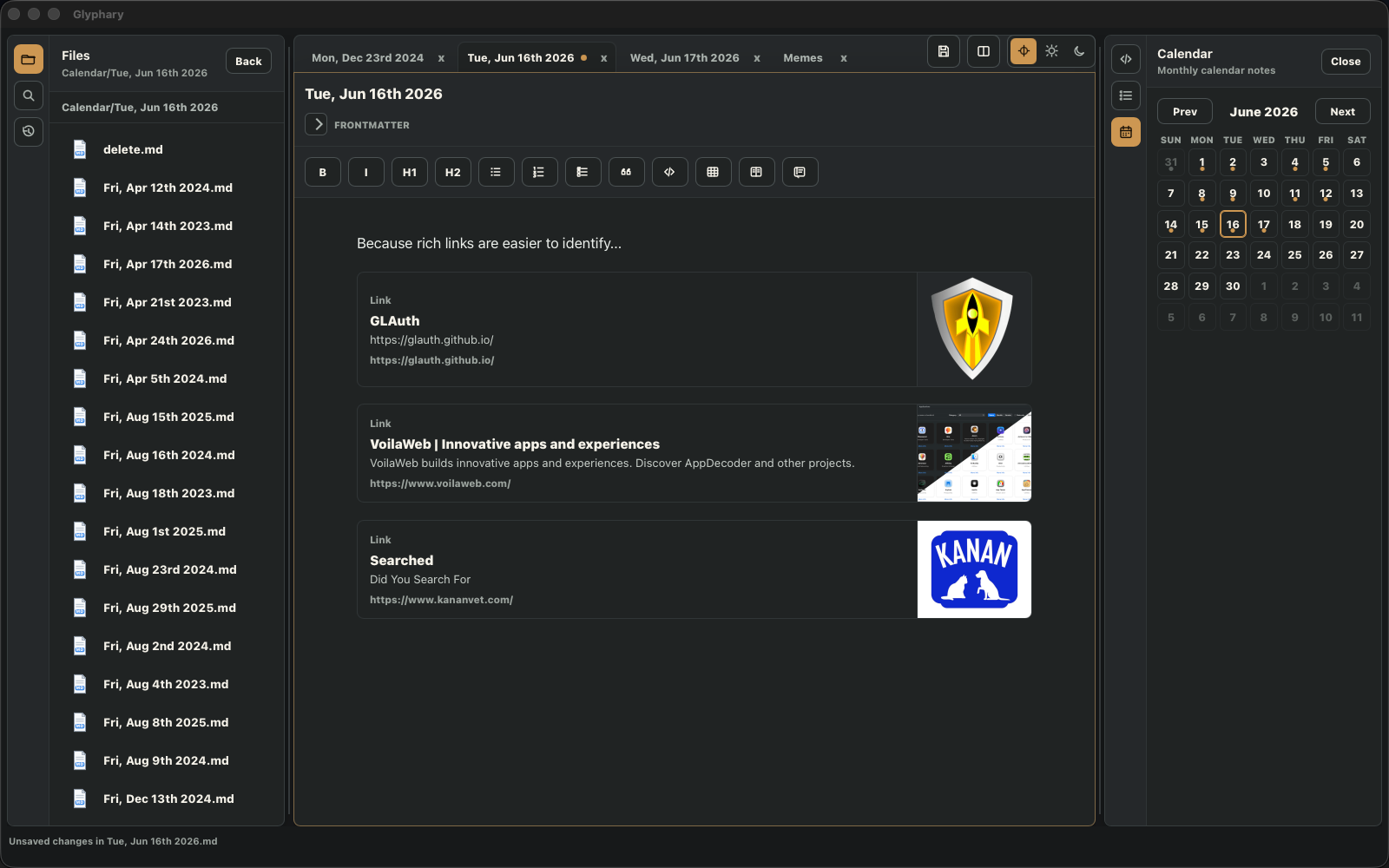
url: https://example.com
title: Example
description: A saved preview card.
siteName: Example
:::Run Insert rich link, paste a URL, and Glyphary fetches metadata. If no metadata image exists, it tries an early page image.
Use Insert HTML block from the toolbar or command palette to insert an editable HTML block. Glyphary renders a sanitized preview and keeps the source editable inside the block. Script-like tags and unsafe attributes are stripped from the preview; the feature is for trusted note content, not for running arbitrary app code.
<div class="note-card">
  <strong>Hello</strong>
</div>
Glyphary can open Obsidian-compatible .canvas files from the vault. Click a
canvas file in the Files drawer and it opens in a tab as a graph editor. Canvas files use a
connected-node file icon in the Files and Recent drawers so they are easy to distinguish from
Markdown notes.
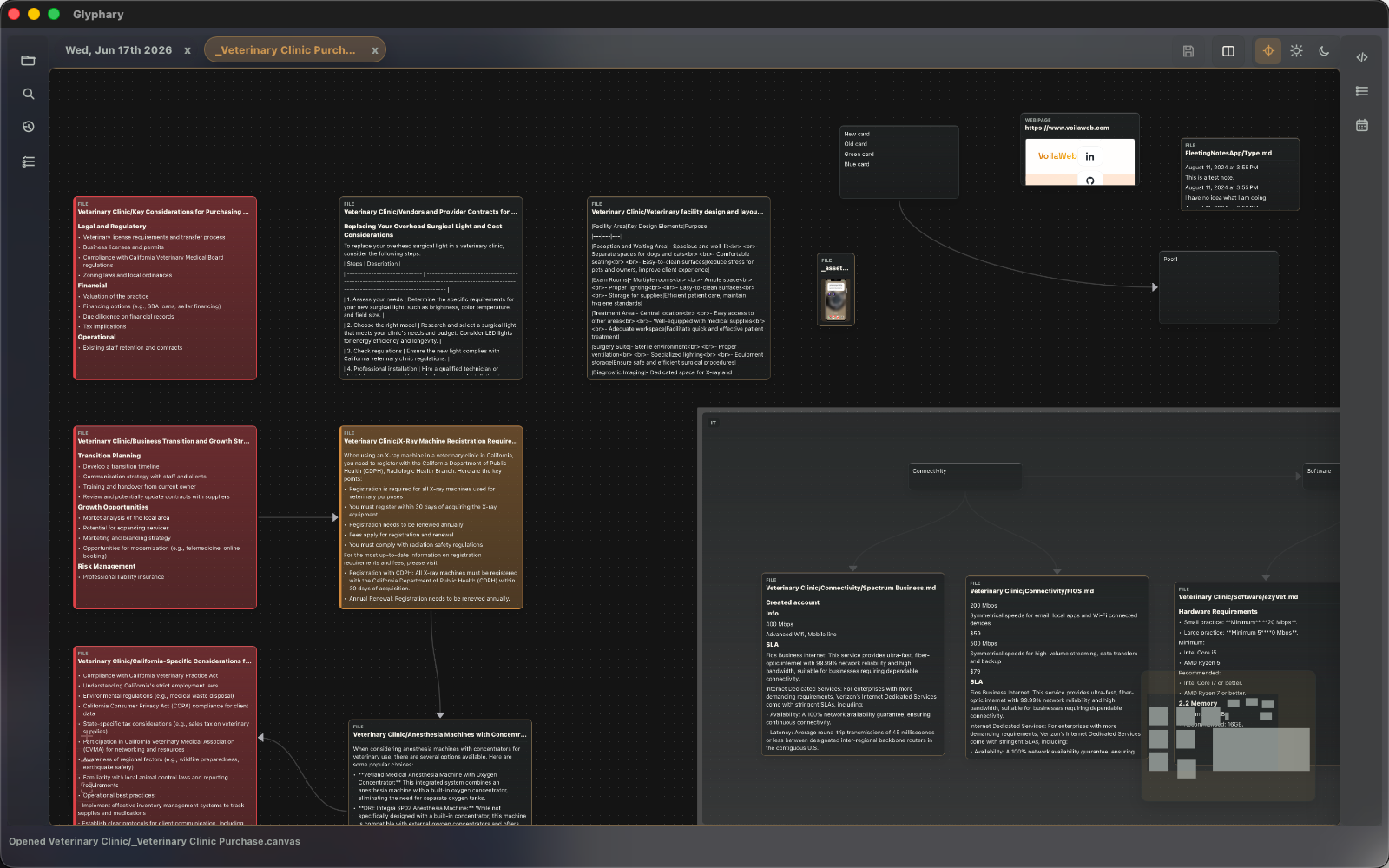
Save the tab normally to write node creation, node movement, edge edits, and node
deletions back to the .canvas file. Glyphary preserves unknown JSON Canvas
fields so Obsidian and plugin-specific metadata can round-trip even when Glyphary does not
render that metadata directly.
Glyphary opens .base files as local database-style views over Markdown notes.
Base definitions query note properties from frontmatter and render matching files as
tables or gallery cards without moving data out of the vault.
views:
  - type: table
    name: Sources
    filters:
      - property: source
        exists: true
Gallery cards can show the first image found in a note, including vault images and remote image URLs. The card image layout can be set to side-by-side or image-on-top in Settings.
Glyphary-managed images live in _assets_/images. Dragging or pasting an
image into a Markdown editor copies it into that directory and inserts a local
reference, so the note remains portable with the vault.
![[Pasted image 20260613133301.png]]

Bare wiki image embeds such as ![[image.png]] resolve from
_assets_/images. Double-click an image in the editor to inspect it at full
size, then press Esc to close the preview. YouTube URLs used as Markdown image sources
display a thumbnail in the page; click the thumbnail to open the video.
Drop plain text from another application directly into the editor to insert it at the
cursor. Dropping a text file inserts its contents. Dropping an image file imports the
file into _assets_/images and inserts the corresponding Markdown image
reference; the original file is not left as an external path.
These editor drops target the pane under the pointer, including the secondary pane in a split. Image paste follows the same import path and supports PNG, JPEG, GIF, and WebP.
Calendar notes live under Calendar/. Existing files display dots. Hover a
day to preview its rendered note, or see that no note exists yet; the preview delay is
configurable in Settings. Click a day to open or create its note; the document-opening
setting can require a double-click instead.
Calendar/Sun, Jun 14th 2026.mdRun Create Tidbit from the command palette to create a note from the configured path pattern.
__transit__/Objects/tidbit-{{date:YYYY-mm-DD-hh-mm-ss}}.mdEnable global capture in Settings, focus the shortcut field, press the desired hotkey, and save settings. On macOS, Glyphary asks for accessibility permission only when this feature is enabled. The shortcut is intended for a running app with an available vault; if no vault is open, the capture window is not shown.
The capture window is a lightweight editor for the new tidbit. Its title can be renamed by double-clicking, following the same rename rules as the main editor.
Settings are stored per vault at <vault root>/.glyphary/config.json.
| Images | _assets_/images |
|---|---|
| Drawings | _assets_/drawings |
| CSS snippets | _snippets_ |
| Plugins | .glyphary/plugins |
| Document opening | One click |
| Files titlebar actions | New Note and New Folder shown |
.glyphary/plugins.Appearance settings include Auto/Light/Dark, glass effect and opacity, UI text weight, rounded corners, margins, theme templates, and CSS snippets. The Interface group under Main controls the title-bar document proxy and status bar. The document proxy shows the active filename and opens native Reveal, Open in Default App, and Copy Path actions.
Templates are complete themes. Picking one also switches the app to the light or dark mode it was designed for, and the change previews live in the main window; closing Settings without saving reverts both the colors and the mode. The Cupertino and Cupertino Dark pair uses white or graphite surfaces, a single vivid blue accent for selection and list bullets, system fonts, soft shadows, and a chartreuse highlight.
The builder exposes Canvas (including the two shadow colors), Text, Accent And Borders, Blocks (including the highlight background and list-marker color), Callouts, Syntax, Typography, and Spacing And Shape. Editor max width is none in every template; set a value such as 860px for a centered column.
Approve CSS snippets from _snippets_. See the dedicated theming reference.
Appearance can add colorful heading levels, heading underlines, heading anchor markers, rich callout styling, structured callout layouts, and per-callout icons on top of the selected theme template. Two further options change the workspace chrome: hide the accent border around the active note pane, and cast a soft shadow from the Files drawer onto the editor.
Plugins are vault-scoped and disabled by default. Install them under .glyphary/plugins.
{
  "id": "meeting_tools",
  "name": "Meeting Tools",
  "runtime": "glyphary-wasm-transform@1",
  "commands": []
}
Authoring details live in the plugin authoring guide.
Enable Vim mode in Settings. The status bar reports Vim normal mode and Vim insert mode.
| Cmd+P | Open command palette. |
|---|---|
| / | At the start of a line or after a space: open the slash menu of Insert and AI commands. |
| Cmd+F | Find text in the active Markdown page. |
| Cmd+N | Create a new note. |
| Cmd+O | Open a vault folder. |
| Cmd+T | Open the configured New Tab file, or show a status prompt if none is configured. |
| Cmd+W | Close the active tab. If it is the last clean tab, the center workspace becomes empty. |
| Ctrl+Tab | Show the next tab; add Shift for the previous tab. |
| Cmd+Shift+[ / ] | Show the previous or next tab on macOS. |
| Cmd+Alt+S | Toggle the left drawer. |
| Cmd+Alt+I | Toggle the inspector. |
| Cmd+S | Save the active document. |
| Cmd+Shift+V | Paste plain text without formatting. |
| Cmd+, | Open Settings. |
| Esc | Close dialogs, previews, or enter Vim Normal mode. |
The native About panel shows the current app version and implementation credits. On launch, Glyphary checks GitHub Releases for a newer version; when one is available, the update dialog shows its release notes and links to the download page. Failed checks stay silent and never interrupt local editing. Debug settings expose global shortcut diagnostics.
Check that the file is under _assets_/images and that the Markdown reference is local.
Glyphary is a Tauri, React, TypeScript, and Rust app. The Makefile wraps the common setup, build, and release commands.
git clone https://github.com/glyphary/glyphary.git
cd glyphary
make install
make install runs npm install and prepares the macOS Rust targets used
by the desktop build. You also need the Rust toolchain and Xcode Command Line Tools installed.
make devThis starts the Vite frontend and the Tauri desktop shell together.
make build
make check
make test
make build builds the frontend, make check adds a Rust compile check,
and make test runs frontend and Rust tests.
make prod-app
make release
make prod-app creates a macOS app bundle. make release creates the
production release bundle used for distribution.